


PDF Photos & PDF Reader
3.451.00 Reviews
App Specs
- Version
- 1.0.4
- Updated On
- License
- Free
- Downloads
- 500,000+
- Developer
- Journey of the Shield
- Categories
- Productivity
- Platform
- Android
Screenshots
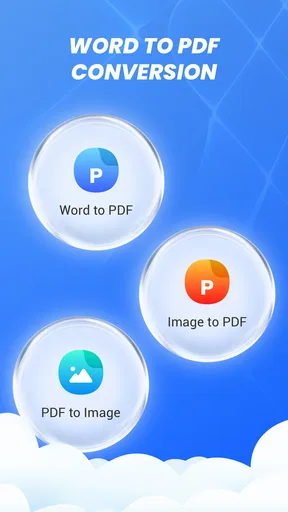
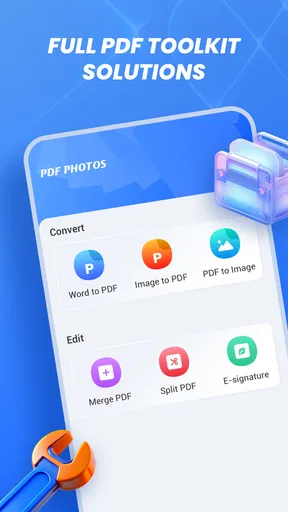
 Analysis by AppCompare
When I need to open a document quickly, I don’t want to hunt through separate apps for PDFs, photos, and office files. PDF Photos & PDF Reader is aimed at that everyday hassle: it is a free productivity app from Journey of the Shield for working with PDFs, images, and common office documents in one place. My first impression is practical rather than flashy. Its appeal is the promise of a simpler document routine, not a full office suite or a dedicated photo-editing studio.
The everyday job it is trying to simplify
The main question I would ask before installing it is not whether it can replace every app on my phone, but whether it gives me a useful first stop when a document arrives. For a quick check of a PDF, a photo of a paper notice, or an office file I need to review, reducing the number of app choices can make phone-based admin feel less fiddly.
That convenience matters most when the task is brief and specific: confirm a date, check a page, or look over a file before responding. If I need to create or revise substantial work, I would still reach for a tool built around editing rather than assume a general-purpose reader is the right workspace.
What free access means here
The app is free to install, which makes it easy to try as a document utility without committing money up front. That is a useful distinction: free access gives you a low-risk way to see whether its approach fits your files and habits, but it does not tell you anything about optional purchases or other costs beyond the confirmed free price. I would judge it by whether it makes routine document handling easier, rather than assuming it replaces every specialist tool.
Its audience figures suggest that other users have tried it too: it has over 500,000 installs and a 3.4 average from around 875 ratings. Those numbers are context, not a guarantee that it will suit your device or workflow. The rating is mixed enough that I would approach it as a practical tool to test, not as an unquestionable recommendation.
A useful hub, not a complete office
The potential value comes from having several everyday file types in one app. If you receive a PDF, a photo of a paper document, and a familiar office file during the same week, a single place to start can reduce the small interruptions that make phone-based admin annoying. That matters most when you want to inspect or organize material on the go, rather than create polished work from scratch.
I would not measure its usefulness by the number of file types alone. A good document routine depends on being able to find the right file, check that it opened correctly, and move on without losing track of the original. For a tidy workflow, I’d keep files named clearly and use folders in the device’s own file system where possible; relying on a reader as the only place you remember a document can make later retrieval harder.
Worth Reading Before You Choose

EA SPORTS FC Mobile 26 Is a Bigger Football Game, but It Takes Time

Flipboard Shows What News Apps Must Do Beyond the Feed

Switching to Android Auto Means Rethinking Your Driving Routine

Google Calendar Makes a Crowded Week Easier to Manage

Ludo King Makes the Most of the Minutes Between Plans

Baby Panda World Brings Quick Play to Modern Phones, but Its Game Library Feels Busy
One practical way to judge the value is to treat it as a shared doorway, not as a filing system. Keep a consistent naming habit for documents—something recognizable like the sender or purpose, followed by the subject—so you can locate the original outside the reader later. This avoids a common phone workflow trap: remembering which app you used to open a file but not where the file itself lives.
Where it can save time in real life
Picture a simple errand: someone sends you a PDF form, you have a photo of a supporting receipt, and you need to check an office document before replying. A multipurpose reader can be a convenient first stop for reviewing those items on the phone. The practical win is fewer app switches, especially when all you need is to inspect content and decide what to do next.
There is also a small but useful workflow lesson here: separate viewing from editing. If you only need to confirm a date or check a page, opening a document in a general-purpose reader may be quicker than launching a full office suite. If you need to revise formatting, collaborate, or make careful changes, moving to a specialist editor is the safer choice. That boundary helps avoid treating a handy reader as more capable than it is.
For photos of paperwork, I’d make a quick quality check before treating the image as a reliable record. Make sure the whole page is visible, text is legible, and shadows or glare have not hidden a detail. A document app can help you access an image alongside other files, but that does not automatically make a poor capture clear or turn it into a searchable, professionally scanned document.
A useful everyday habit is to decide what the next action should be before opening a file. If the answer is simply “read and reply,” a lightweight reader may be enough. If the answer is “fill this out,” “change a table,” or “send a clean scan,” pause and choose the appropriate editor or scanning workflow instead. That little decision prevents a quick preview from turning into a frustrating attempt to do detailed work in the wrong kind of app.
The trade-offs I would keep in mind
The breadth that makes an all-purpose document app convenient can also be its limit. A general reader is not automatically the best tool for editing a spreadsheet, composing a long report, or polishing a scan. If your daily work depends on advanced formatting, dependable collaboration, or precise document conversion, I would use a dedicated office suite or a specialist PDF tool for those jobs and treat this app as a lightweight companion.
Another trade-off is that mixed file collections can become confusing. A PDF, a photo, and an office document may all relate to one task but behave differently when you share or revise them. I’d keep the original files intact and make a separate copy before trying any workflow that could alter a document. That simple habit protects the version you received and makes it easier to back out of an unwanted change.
There is a related choice when a document contains information you need to preserve accurately. A photo is not interchangeable with a text-based PDF, even if both show the same page: the image may be harder to search, quote from, or read at a glance. I would keep both versions when the distinction matters, and avoid assuming that opening a picture in a document reader changes what the picture can do.
The rating also advises a little caution. With a 3.4 average, user experiences are not uniformly positive, though a rating alone cannot explain why. I would install it, try opening the specific kinds of files I actually use, and check whether navigation feels comfortable before making it part of an important routine. The current version is 1.0.4, so I’d be especially deliberate about testing it with low-stakes documents first rather than assuming it has every refinement of a long-established office app.
It is marked for Everyone and was released on July 28, 2026. It requires Android 8.0 or later, so that minimum is worth checking before you plan to use it on an older phone. Those details help answer the basic compatibility question, but the best test is still whether your own device opens your everyday files smoothly.
For a cautious first session, I’d test one example of each kind of file I expect to open, then close the app and return to them later. The second visit is a better check of everyday usefulness than a successful first launch: it tells me whether I can find my material again without relying on memory or repeating the original search. I’d also use harmless examples at first, rather than make an important deadline depend on an unfamiliar workflow.
Who is most likely to get value
I think PDF Photos & PDF Reader makes the most sense for someone who regularly receives a mix of PDFs, photos, and mainstream office documents but does not need a professional editing environment on a phone. Students checking handouts, people reviewing forms, and anyone keeping household paperwork accessible may appreciate having a straightforward starting point for those files.
It is less compelling for someone who already has a preferred PDF reader and office suite that handle their needs cleanly. Installing another app can add one more place to search, and convenience disappears if you have to remember which reader contains which document. If your priority is advanced annotation, serious document production, or team editing, choose the specialist tool that does that job well instead of expecting one general app to cover every edge case.
Compared with using separate specialist apps, the appeal here is less about maximum capability and more about reducing the number of handoffs for casual viewing. A dedicated office suite is the better fit when a document needs sustained editing; a PDF-focused tool makes more sense when detailed markup is central to the task. I’d choose this general reader when the files are varied but the actions are simple, and skip it if the switching it saves is not a real problem in my routine.
For a first test, I’d use a non-sensitive sample PDF, a clear document photo, and a familiar office file. Notice not just whether each opens, but whether you can return to it later without confusion and whether the reading experience suits your screen. If those simple checks feel easy, the app may earn a place in your everyday toolkit; if they feel awkward, there is little reason to force the fit just because installation is free.
My verdict: try it for convenience, skip it for specialist work
My recommendation is measured: try PDF Photos & PDF Reader if you want a free, general-purpose place to start with common documents on Android and your needs are mostly viewing and basic file handling. The strongest case for it is convenience across several file types, while the clearest reason to look elsewhere is a need for deeper editing or a more mature, tightly integrated office workflow.
Journey of the Shield has positioned this as a practical utility, and that is the lens I would use when deciding whether to keep it. I would not install it expecting a complete replacement for dedicated PDF or office software. But if your current routine involves bouncing between apps just to check everyday files, the convenience of one general document stop may be worth a low-risk try. Keep your originals organized, test the file types you rely on, and let that experience—not the broad promise of an all-in-one reader—settle the decision.
Overall, PDF Photos & PDF Reader is best considered a handy option rather than an essential upgrade. Its free entry point makes experimentation straightforward, but its mixed 3.4 average is a reason to verify that it works well for your particular habits. For casual document access, I can see the appeal; for demanding editing, collaboration, or a workflow that already runs smoothly, I’d stick with the specialist tools you trust.
Pros
- Turns photos into PDFs for convenient sharing and archiving.
- Supports opening and reading PDF files in one app.
- Useful for digitizing paper documents with a phone camera.
- Keeps image-based documents easy to organize and access.
- Handy for creating PDFs on the go without a computer.
Cons
- Scan quality depends on lighting and camera focus.
- Large photo collections can produce bulky PDF files.
- Complex editing tools may be limited compared with desktop software.
- Some features may require payment or include ads.
- PDF conversion can take time when processing many images.
FAQs for PDF Photos & PDF Reader
What is PDF Photos & PDF Reader used for?
PDF Photos & PDF Reader is designed to help you view PDF documents and work with photos in a PDF-related workflow. Depending on the version and available features, it may let you browse files, open documents, and turn images into PDF files. Check the app’s current listing and on-device menus before relying on a particular tool, since features can vary by platform and update.
Can I convert photos into a PDF with this app?
The app’s name suggests that photo-to-PDF creation is one of its intended uses, but the exact steps and options may depend on the installed version. Look for an image selection or PDF creation tool, then review options such as page order, orientation, and size before saving. If you need a specific layout or batch-processing feature, confirm it is available before importing your photos.
Does PDF Photos & PDF Reader work offline?
Opening files already stored on your device may work without an internet connection, but online services, cloud storage, or certain optional features could require connectivity. Offline behavior can also differ between Android and iOS versions. If you plan to use the app while traveling or in an area with limited service, test it with a local PDF and photos first, and avoid assuming every feature works offline.
Is PDF Photos & PDF Reader free, and does it include ads or in-app purchases?
Pricing, advertisements, and paid features can change over time and may differ between the Google Play Store and Apple App Store. Before downloading, check the store listing for the price, in-app purchase details, subscription terms, and recent user reviews. If a trial or subscription is offered, read its renewal and cancellation conditions carefully so you understand any costs before starting.
Are my PDFs and photos private when I use the app?
Privacy depends on how the app handles files, permissions, analytics, and any online features. Review the app’s privacy information in the relevant app store, and grant access only to the files or photos needed for your task when your device allows selective permissions. For confidential documents, consider whether processing stays on the device and avoid uploading sensitive files unless you understand the service’s data practices.


